

Learning Hub for IT administrators
Practical guides, videos, FAQs, and leadership support resources for using Blended Leading inside Microsoft Teams.
Welcome to Blended Leading for IT!
This guide provides a technical overview of Blended Leading, explains the role of IT during deployment and operation, and helps you understand the security, access, and governance principles behind the solution.
What is Blended Leading (from an IT perspective)?
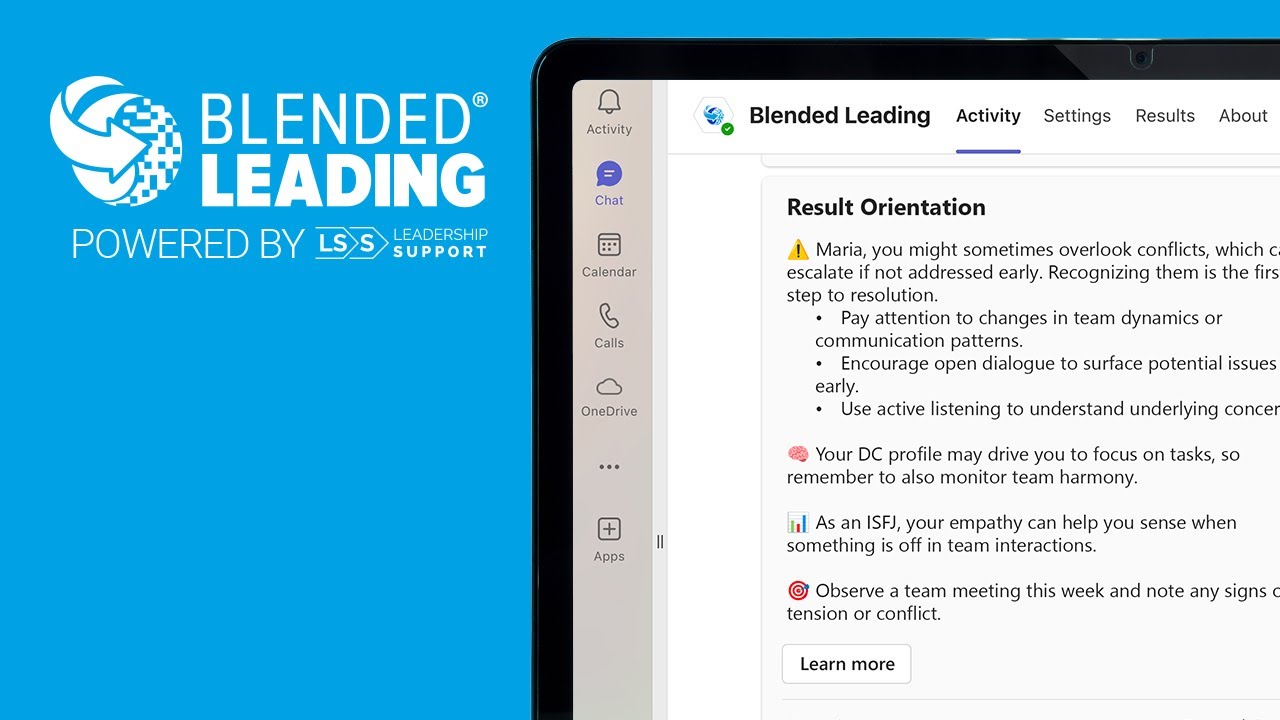
Blended Leading is an AI-powered leadership enablement platform that delivers personalized leadership nudges directly within Microsoft Teams.
The solution is designed to integrate with your existing Microsoft 365 environment and operate as a secure, organization-specific service.
From an IT perspective, Blended Leading consists of:
- A Microsoft Teams application
- A Microsoft Teams Bot
- Microsoft Entra ID (Azure AD) authentication
- Microsoft Graph integration
- The Blended Leading cloud platform
The platform is primarily administered by HR and business stakeholders, while IT is responsible for deployment, access, and governance.
What problem does it solve?
Organizations invest heavily in leadership development through:
- Training programs
- Coaching
- Assessments
- Learning platforms
However, applying learning consistently in daily work remains a challenge.
Blended Leading extends leadership development into the flow of work by delivering personalized guidance directly inside Microsoft Teams.
For IT, this means supporting a business-critical development platform that operates within existing Microsoft infrastructure without introducing additional end-user complexity.
Your role as an IT Administrator
As an IT Administrator, your role is to enable secure deployment and operation of the platform.
Your responsibilities typically include:
- Reviewing security and compliance requirements
- Creating and configuring the Bot registration
- Managing Microsoft Entra ID permissions
- Installing and publishing the Teams application
- Managing access policies and pilot groups
- Supporting troubleshooting when required
In most organizations, IT involvement is highest during deployment and significantly lower during ongoing operation.
What you don’t need to do
Blended Leading is designed to minimize ongoing IT administration.
You do not need to:
- Configure leadership models
- Upload leadership data
- Manage nudges
- Interpret reports or analytics
- Support day-to-day user interactions
- Monitor platform content
These activities are handled by HR administrators and business owners.
How Blended Leading works (in simple terms)
Blended Leading follows a straightforward flow:
- IT deploys and enables the platform
- HR configures organizational settings and leadership data
- Leaders access Blended Leading through Microsoft Teams
- The platform generates personalized nudges
- Feedback improves the user experience over time
- HR receives aggregated organizational insights
This separation ensures that IT remains focused on infrastructure, access, and governance.
Security by design
Blended Leading is built around a principle of minimum required access.
The platform:
- Does not read Teams chats
- Does not access email content
- Does not access calendar content
- Does not monitor user behavior
- Does not record meetings
- Does not access SharePoint or OneDrive files
Only explicitly authorized data is processed.
This simplifies security reviews and reduces privacy concerns during deployment.
Authentication and identity
Blended Leading uses Microsoft Entra ID for authentication.
This provides:
- Secure organizational sign-in
- Tenant-specific access control
- Single Sign-On experience
- Centralized identity management
The solution is deployed as a dedicated tenant-specific configuration, ensuring organizational isolation.
What IT gains
Blended Leading is designed to:
- Fit naturally within Microsoft 365 environments
- Minimize support overhead
- Reduce deployment complexity
- Support enterprise security requirements
- Enable business ownership without continuous IT involvement
Once deployed, ongoing administration is typically limited to application lifecycle management and standard Microsoft 365 governance processes.
A note on privacy and compliance
Blended Leading is designed with strict privacy principles:
- No employee surveillance
- No hidden data collection
- Explicit data usage only
- GDPR-aligned data handling
- Secure processing and storage
- Organization-controlled access
The platform is intended to support leadership development—not employee monitoring.
Your next steps
The following articles explain the technical deployment process in detail:
- Understanding the Technical Architecture
- Authentication & Permissions
- Initial Deployment
- Installing the Teams Application
- Managing Access & User Availability
- Security & Compliance
- Troubleshooting
- FAQ for IT Administrators
Blended Leading is designed to be straightforward to deploy, secure to operate, and easy to support.
Understanding the Technical Architecture
Before deploying Blended Leading, it is useful to understand how the different components work together.
This article provides a high-level overview of the architecture, authentication model, and data flow behind the platform.
You do not need to be a developer to understand this section. Its purpose is to support technical reviews, security assessments, and deployment planning.
Architecture Overview
Blended Leading consists of five main components:
- Microsoft Teams
- Microsoft Entra ID (Azure AD)
- Microsoft Graph
- Blended Leading Bot
- Blended Leading Platform
Together, these components provide a secure and seamless user experience inside Microsoft Teams.
Component 1: Microsoft Teams
Microsoft Teams is the primary user interface.
Leaders interact with Blended Leading directly inside Teams to:
- Receive nudges
- Review insights and results
- Manage personal settings
- Rate nudges and provide feedback
No additional platform login is required.
Component 2: Microsoft Entra ID
Microsoft Entra ID provides identity management and authentication.
It is responsible for:
- User authentication
- Single Sign-On (SSO)
- Organizational access control
- Tenant identification
When a user opens Blended Leading, authentication is performed through Microsoft Entra ID using the organization’s existing identity infrastructure.
Component 3: Microsoft Graph
Blended Leading uses Microsoft Graph with a limited permission scope.
The platform uses Microsoft Graph to:
- Verify user identity
- Retrieve basic profile information
- Confirm tenant membership
The required permission is:
User.Read
This permission allows access to basic profile information required for authentication and user provisioning.
Blended Leading does not require access to:
- Calendars
- Teams conversations
- Files
- SharePoint content
- Meeting recordings
This follows the principle of least privilege.
Component 4: Blended Leading Bot
The Blended Leading Bot is the communication layer between Microsoft Teams and the Blended Leading platform.
The Bot is responsible for:
- Delivering nudges
- Receiving user interactions
- Managing Teams-based communication
The Bot operates within your Microsoft 365 tenant through a dedicated Bot registration.
This registration is configured during deployment.
Component 5: Blended Leading Platform
The Blended Leading Platform provides:
- User management
- Leadership model management
- Data processing
- Nudge generation
- Reporting and analytics
- Administration interfaces
This is where HR administrators configure the organizational setup and review aggregated insights.
High-Level Data Flow
A simplified flow looks like this:
Step 1
User opens Blended Leading in Microsoft Teams.
Step 2
Microsoft Entra ID authenticates the user.
Step 3
Microsoft Graph confirms user identity and tenant information.
Step 4
The Blended Leading Platform retrieves the user’s configuration and available data.
Step 5
Relevant nudges and insights are generated.
Step 6
The Blended Leading Bot delivers the content inside Microsoft Teams.
Step 7
User feedback is returned to the platform for continuous improvement and aggregated reporting.
Single-Tenant Deployment Model
Blended Leading uses a dedicated tenant-specific configuration.
This means:
- Each customer has its own Bot registration
- Authentication is restricted to the organization’s tenant
- Access is controlled by the customer
- Cross-tenant access is not permitted
This model improves:
- Security
- Governance
- Administrative control
Why a Bot Registration is Required
The Bot registration enables secure communication between:
- Microsoft Teams
- Microsoft Entra ID
- The Blended Leading Platform
Without a registered Bot:
- Teams cannot deliver nudges
- Authentication cannot be completed
- Users cannot interact with the application
For this reason, Bot registration is the first deployment step.
Security Principles
The architecture follows several core security principles:
Least Privilege
Only the minimum required permissions are requested.
Tenant Isolation
Each customer environment is isolated from other customers.
Explicit Data Access
Only approved and configured data sources are processed.
Secure Authentication
Authentication is handled through Microsoft Entra ID.
No Hidden Monitoring
The platform does not monitor user communications or activity.
Typical Deployment Flow
A standard deployment follows these steps:
- Review architecture and security requirements
- Register the Bot
- Configure Microsoft Entra ID permissions
- Provide deployment information to Blended Leading
- Receive the Teams application package
- Upload and publish the Teams app
- Assign users or pilot groups
- Launch the solution
The following articles explain each step in detail.
In Summary
The Blended Leading architecture is built around:
- Microsoft Teams
- Microsoft Entra ID
- Microsoft Graph
- A dedicated Bot
- The Blended Leading Platform
Together, these components provide a secure, scalable, and tenant-specific leadership development solution with minimal ongoing IT administration.
Authentication & Permissions
Authentication and permissions are at the core of every Blended Leading deployment.
This article explains how users are authenticated, which permissions are required, why they are needed, and how Blended Leading follows the principle of least privilege.
Understanding these concepts will help you complete security reviews, tenant approvals, and deployment planning more efficiently.
Why Authentication Matters
Blended Leading is designed to operate within your Microsoft 365 environment.
To provide a seamless user experience, the platform needs to:
- Verify user identity
- Confirm organizational membership
- Enable secure access to the application
- Ensure users only access information they are authorized to see
Rather than creating separate user accounts, Blended Leading relies on your existing Microsoft identity infrastructure.
Authentication Model
Blended Leading uses:
Microsoft Entra ID (Azure AD)
for:
- Authentication
- Identity management
- Single Sign-On (SSO)
- Tenant verification
When a user launches Blended Leading from Microsoft Teams:
- Microsoft Entra ID authenticates the user
- The user’s tenant is verified
- Access is granted according to organizational configuration
No separate username or password is required.
Single Sign-On (SSO)
Blended Leading supports Single Sign-On through Microsoft Entra ID.
This means users:
- Do not need additional credentials
- Do not manage separate passwords
- Access the platform through their existing Microsoft 365 account
Benefits include:
- Improved user experience
- Reduced support requests
- Stronger security controls
- Centralized identity management
Tenant Authentication
During deployment, Blended Leading is configured as a:
Single-Tenant Application
This means:
- Authentication is restricted to your organization
- Only approved users can access the platform
- Access is isolated from other customers
This model improves:
- Security
- Governance
- Administrative control
Microsoft Graph Permissions
Blended Leading requires a minimal Microsoft Graph permission set.
Required Permission
User.Read
This permission allows the application to:
- Identify the signed-in user
- Retrieve basic profile information
- Verify organizational membership
Examples include:
- Name
- Email address
- User identifier
- Tenant information
Why User.Read Is Required
Without User.Read, the platform cannot:
- Authenticate users properly
- Associate users with the correct tenant
- Personalize the user experience
- Manage user provisioning
This permission is required solely for identity purposes.
What Blended Leading Does NOT Access
Blended Leading does not request access to:
Microsoft Teams
- Chats
- Channel messages
- Conversations
Microsoft Outlook
- Emails
- Attachments
- Mailboxes
Microsoft Calendar
- Events
- Meeting content
- Scheduling information
Microsoft Files
- OneDrive
- SharePoint
- Teams files
Microsoft Meetings
- Recordings
- Transcripts
- Meeting analytics
These permissions are not required and are not requested.
Admin Consent
Before users can access Blended Leading, an administrator must grant consent for the required Microsoft Graph permissions.
The consent process:
- Reviews requested permissions
- Grants organizational approval
- Enables user authentication
Because Blended Leading only requires User.Read, the consent scope remains minimal.
Client Secret & Application Identity
As part of deployment, a dedicated Bot registration is created.
This registration includes:
Application (Client) ID
Identifies the application within Microsoft Entra ID.
Directory (Tenant) ID
Identifies the customer tenant.
Client Secret
Provides secure application authentication.
These values are required to generate the customer-specific deployment package.
Security Best Practices
We recommend:
✔ Store Client Secrets Securely
Treat secrets as privileged credentials.
✔ Follow Secret Rotation Policies
Rotate secrets according to your organization’s security standards.
✔ Limit Administrative Access
Restrict Bot and App Registration administration to authorized personnel.
✔ Review Permissions Periodically
Confirm that only required permissions remain assigned.
Common Security Questions
Does Blended Leading store Microsoft passwords?
No.
Authentication is performed through Microsoft Entra ID.
Passwords are never stored by Blended Leading.
Can Blended Leading access our Teams conversations?
No.
The platform does not request or receive permissions for Teams conversations.
Can we restrict access to specific users?
Yes.
Access can be limited through:
- Teams application assignment
- Security groups
- Pilot groups
- Organizational policies
Can permissions be revoked later?
Yes.
Administrators can remove:
- Application permissions
- Tenant consent
- Teams application availability
at any time.
In Summary
Blended Leading authentication is based on:
- Microsoft Entra ID
- Single Sign-On
- Tenant-specific access control
- Minimal Microsoft Graph permissions
The only required Microsoft Graph permission is:
User.Read
This approach provides secure authentication while maintaining the principle of least privilege.
Initial Deployment & Bot Registration
This article walks you through the initial deployment of Blended Leading within your Microsoft 365 environment.
The deployment process is typically completed once during implementation and consists of:
- Creating the Bot registration
- Configuring Microsoft Entra ID permissions
- Providing deployment information to Blended Leading
- Installing the Teams application
- Assigning access to users
The entire process usually takes less than an hour for an experienced Microsoft 365 administrator.
Before You Begin
Before starting, ensure you have:
Required Permissions
- Microsoft Teams Administrator access
- Microsoft Entra ID (Azure AD) Administrator access
- Application Registration permissions
Required Environment
- Microsoft 365 tenant
- Microsoft Teams enabled
- Microsoft Entra ID available
Deployment Overview
The deployment process follows this sequence:
Step 1
Create the Blended Leading Bot registration.
Step 2
Configure authentication and permissions.
Step 3
Provide deployment information to Blended Leading.
Step 4
Receive the customer-specific Teams application package.
Step 5
Upload and publish the Teams application.
Step 6
Assign users or pilot groups.
Step 1: Create the Bot Registration
The Blended Leading Bot enables communication between:
- Microsoft Teams
- Microsoft Entra ID
- The Blended Leading Platform
Without the Bot registration, Teams cannot deliver nudges or support user interactions.
Open the Teams Developer Portal
Navigate to:
https://dev.teams.microsoft.com/
Create a New Bot
- Open Tools
- Select Bot Management
- Click New Bot
Configure the following:
Bot Name
BL Bot
Messaging Endpoint
https://api.blendedleading.com/bot
Click Save.
Create a Client Secret
After the Bot is created:
- Open Client Secrets
- Create a new secret
- Store the secret securely
⚠️ The secret will be required later during deployment.
Step 2: Configure Microsoft Entra ID
After creating the Bot:
- Open Microsoft Azure Portal
https://portal.azure.com/
- Navigate to:
App Registrations
- Open the Bot registration created in the previous step.
Configure Supported Account Types
Navigate to:
Authentication
Select:
Accounts in this organizational directory only
(Single Tenant)
Save the configuration.
Configure API Permissions
Navigate to:
API Permissions
Select:
Add Permission
Choose:
Microsoft Graph
Then:
Delegated Permissions
Add:
User.Read
Finally:
Grant Admin Consent
for your organization.
Collect Deployment Information
Navigate to:
Overview
Record the following values:
Application (Client) ID
Directory (Tenant) ID
These values will be required by the Blended Leading deployment team.
Step 3: Provide Deployment Information
Send the following information securely to the Blended Leading implementation team:
Application (Client) ID
Directory (Tenant) ID
Client Secret
These values are used to generate your organization-specific deployment package.
What Happens Next?
The Blended Leading team will:
- Configure your tenant-specific deployment
- Generate your Teams application package
- Provide the installation archive
You will receive a deployment package ready for upload into Microsoft Teams.
Step 4: Grant Tenant Consent
Before installing the application, administrator consent must be granted.
Execute the consent URL provided by Blended Leading during deployment.
This grants the required Microsoft Graph permission:
User.Read
No additional Graph permissions are required.
Step 5: Install the Teams Application
After receiving the deployment package:
Open:
https://admin.teams.microsoft.com
Navigate to:
Teams Admin Center → Manage Apps
Upload the Application
- Select Actions
- Choose Upload New App
- Upload the deployment package provided by Blended Leading
After upload:
- Open the application details
- Verify configuration
- Review availability settings
Step 6: Assign Users
You can choose who receives access.
Typical deployment approaches include:
Pilot Deployment
Assign to:
- Selected leaders
- Pilot groups
- Specific departments
Recommended for initial rollout.
Department Rollout
Assign to:
- Business units
- Functions
- Leadership populations
Organization-Wide Rollout
Make the application available to all eligible users.
Verify Deployment
Before launch, verify:
Authentication
- User can sign in successfully
Teams Availability
- App appears in Teams
Bot Connectivity
- Nudges can be delivered
HR Administration
- HR Admin can access the administration portal
Recommended Rollout Approach
We recommend:
Phase 1
Pilot group
Phase 2
Selected business units
Phase 3
Organization-wide deployment
This approach allows validation before scaling.
Common Deployment Issues
App Does Not Appear in Teams
Check:
- App assignment
- Teams policies
- User group membership
User Cannot Sign In
Check:
- Tenant consent
- User account status
- Microsoft Entra ID configuration
Bot Not Responding
Check:
- Bot registration
- Client Secret validity
- Tenant configuration
In Summary
Initial deployment consists of:
- Bot registration
- Entra ID configuration
- User.Read permission approval
- Teams application installation
- User assignment
Once deployment is completed, ongoing administration is typically minimal and primarily focused on application lifecycle management.
Managing the Teams Application & User Access
Once Blended Leading has been deployed, ongoing IT administration is typically limited to managing application availability, user access, and version updates.
This article explains how to manage the Microsoft Teams application after deployment and how to support controlled rollouts across your organization.
Why This Matters
Managing application availability allows you to:
- Control who can access Blended Leading
- Support pilot deployments
- Roll out the solution gradually
- Align deployment with organizational policies
- Maintain governance and security standards
Most organizations begin with a pilot group before expanding access more broadly.
Accessing the Teams Admin Center
Application management is performed through the Microsoft Teams Admin Center.
Navigate to:
https://admin.teams.microsoft.com
From there, open:
Teams Apps → Manage Apps
This section contains all Teams applications available within your tenant.
Locating the Blended Leading Application
After installation, locate:
Blended Leading
Within the application list.
From the application details page, you can:
- Review configuration
- Manage availability
- Control user access
- Verify application status
Making the Application Available
Blended Leading supports flexible deployment models.
You can make the application available to:
Specific Users
Useful for:
- Testing
- Early adopters
- Executive sponsors
Security Groups
Useful for:
- Pilot programs
- Leadership cohorts
- Departmental rollouts
Recommended for most deployments.
Entire Organization
Useful when:
- Pilot phases are completed
- Governance approvals are finalized
- The organization is ready for full adoption
Recommended Rollout Approach
Most successful deployments follow a phased approach.
Phase 1 – Pilot Group
Assign access to:
- HR project team
- Leadership development team
- Selected leaders
Goals:
- Validate deployment
- Confirm user experience
- Collect initial feedback
Phase 2 – Controlled Expansion
Assign access to:
- Specific business units
- Leadership populations
- Target groups
Goals:
- Validate scalability
- Confirm governance processes
- Measure adoption
Phase 3 – Organization-Wide Rollout
Make the application available to all eligible users.
Goals:
- Maximize adoption
- Standardize access
- Reduce administrative effort
Managing User Access
Access can be adjusted at any time.
You can:
Add Users
Grant access to:
- New leaders
- New departments
- New locations
Remove Users
Remove access when:
- Employees leave
- Pilot programs end
- Access is no longer required
Restrict Access
Access can be limited through:
- Security groups
- Teams policies
- Organizational controls
This allows precise governance without changing the application itself.
Managing Updates
Blended Leading periodically releases updates and improvements.
Updates may include:
- New functionality
- Security enhancements
- User experience improvements
- Platform optimizations
Updating the Application
When a new package is provided:
- Open Teams Admin Center
- Navigate to Manage Apps
- Select Blended Leading
- Upload the updated package
Microsoft Teams will apply the updated version according to standard Teams application management processes.
Version Management Best Practices
We recommend:
✔ Test Before Broad Rollout
Validate updates with a small group first.
✔ Inform HR Administrators
Communicate changes that may affect:
- Reporting
- Configuration
- User experience
✔ Keep Documentation Updated
Ensure internal support documentation reflects the deployed version.
Temporarily Disabling Access
If necessary, access can be temporarily restricted by:
- Removing user assignments
- Restricting security groups
- Updating Teams application policies
This can be useful during:
- Security reviews
- Internal audits
- Organizational changes
Removing the Application
If Blended Leading is no longer required:
- Remove user access
- Unpublish the application
- Remove the Teams package
- Revoke application permissions if required
Removal can be performed at any time by the tenant administrator.
Supporting HR During Rollout
Although HR owns the operational use of Blended Leading, IT may be asked to assist with:
User Access Issues
Examples:
- Application not visible
- Sign-in problems
- Assignment issues
Application Updates
Examples:
- New package deployment
- Version validation
Security Reviews
Examples:
- Permission reviews
- Compliance assessments
- Tenant governance reviews
Common Questions
Can we deploy to only one department?
Yes.
Application availability can be restricted to specific users or groups.
Can we run a pilot before full rollout?
Yes.
Pilot deployments are recommended and commonly used.
Can we remove access without uninstalling the application?
Yes.
User access can be managed independently of the application package.
Can we roll back an update?
This depends on your internal application governance process and the available deployment package versions.
Contact the Blended Leading support team if rollback assistance is required.
In Summary
Managing Blended Leading after deployment primarily involves:
- User access management
- Teams application availability
- Version updates
- Governance support
Most day-to-day platform administration remains with HR, allowing IT to focus on security, access control, and lifecycle management.
Security, Compliance & Data Protection
Security, privacy, and compliance are central to every Blended Leading deployment.
This article explains how the platform is designed to protect organizational data, which security principles are applied, and what IT administrators should know during security reviews, audits, and compliance assessments.
Security by Design
Blended Leading has been designed around a simple principle:
Access only what is necessary. Nothing more.
The platform follows a least-privilege architecture, meaning it requests only the minimum permissions required to authenticate users and operate within Microsoft Teams.
This reduces:
- Security risks
- Compliance complexity
- Administrative overhead
Core Security Principles
Blended Leading is built around five core principles:
- Least Privilege
Only the minimum required permissions are requested.
The platform requires:
- Microsoft Entra ID authentication
- Microsoft Graph User.Read permission
No additional Microsoft Graph permissions are required for normal operation.
- Tenant Isolation
Each customer operates within its own Microsoft 365 tenant.
This ensures:
- Organizational separation
- Independent authentication
- Dedicated Bot registration
- Controlled access
There is no cross-customer visibility.
- Explicit Data Usage
Blended Leading only processes data that is explicitly provided by:
- The organization
- HR administrators
- Individual users (where applicable)
No hidden or passive data collection takes place.
- Secure Authentication
Authentication is performed through:
- Microsoft Entra ID
- Single Sign-On (SSO)
- Organization-controlled identity management
Passwords are never stored by Blended Leading.
- Privacy First
The platform is designed to support leadership development—not employee monitoring.
This principle influences:
- Permissions
- Reporting
- Analytics
- Data visibility
What Data Blended Leading Can Access
Blended Leading can access only:
Identity Information
Through Microsoft Graph User.Read:
- User name
- Email address
- User identifier
- Tenant identifier
Configured Leadership Data
Depending on organizational setup:
- Leadership models
- Corporate values
- 360° feedback reports
- Psychometric profiles
- Development data provided by HR
User Feedback
Examples include:
- Nudge ratings
- Action statuses
- User preferences
This information is used to improve relevance and generate aggregated analytics.
What Blended Leading Cannot Access
Blended Leading does not request or access:
Microsoft Teams Content
- Chats
- Private messages
- Channel conversations
- Teams activity
Microsoft Outlook Content
- Emails
- Mailboxes
- Attachments
Microsoft Calendar Data
- Appointments
- Meeting schedules
- Meeting content
Files & Documents
- OneDrive files
- SharePoint files
- Teams file storage
Meetings
- Recordings
- Transcripts
- Meeting analytics
Employee Monitoring Data
The platform does not:
- Monitor behavior
- Track productivity
- Analyze communications
- Observe daily activities
This is intentionally outside the scope of the solution.
Data Ownership
The customer organization remains the owner of its data at all times.
Blended Leading acts as:
Data Processor
while the customer remains the:
Data Controller
under GDPR definitions.
This means the organization maintains control over:
- Data usage
- Data retention
- User access
- Governance policies
GDPR Compliance
Blended Leading has been designed to support compliance with EU GDPR requirements.
Key principles include:
Lawful Processing
Data is processed only for clearly defined development purposes.
Data Minimization
Only necessary data is collected and processed.
Transparency
Users are informed about:
- What data is used
- Why it is used
- How it is protected
User Control
Where applicable, users can:
- Provide consent
- Withdraw consent
- Remove uploaded data
- Stop using the platform
Encryption & Protection
Sensitive information is protected through standard security controls.
This includes:
Encryption in Transit
Data exchanged between:
- Teams
- Microsoft Entra ID
- Blended Leading services
is protected through encrypted connections.
Encryption at Rest
Stored data is protected using appropriate encryption mechanisms.
Access Controls
Administrative access is restricted through:
- Role-based permissions
- Tenant-specific controls
- Organizational governance policies
Reporting & Analytics Privacy
One of the most common questions during security reviews concerns reporting.
Blended Leading follows a strict separation principle.
What HR Can See
HR administrators can access:
- Aggregated usage metrics
- Aggregated ratings
- Aggregated action statuses
- Organizational trends
What HR Cannot See
HR administrators cannot access:
- Individual nudges
- Individual ratings
- Individual action statuses
- Individual usage behavior
This protects trust and psychological safety for participants.
Security Review Checklist
Before approving deployment, IT teams often review the following:
Authentication
✔ Microsoft Entra ID
✔ Single Sign-On
Permissions
✔ Microsoft Graph User.Read only
✔ No mail access
✔ No calendar access
✔ No Teams message access
Governance
✔ Tenant isolation
✔ Customer-controlled access
✔ Role-based administration
Privacy
✔ No monitoring
✔ No surveillance
✔ Aggregated reporting only
Compliance
✔ GDPR-aligned design
✔ Explicit data usage
✔ Organizational data ownership
Common Security Questions
Does Blended Leading read Teams messages?
No.
The platform does not request permissions to access Teams conversations.
Does Blended Leading read emails?
No.
Email access is not requested and not required.
Does Blended Leading monitor employee behavior?
No.
The platform is designed for leadership development, not employee monitoring.
Can customer data be accessed by other organizations?
No.
Each customer environment is isolated and protected through tenant-specific configuration.
Can access be revoked at any time?
Yes.
Administrators can:
- Remove application permissions
- Revoke consent
- Remove application access
- Uninstall the Teams application
at any time.
In Summary
Blended Leading is designed around:
- Least-privilege access
- Tenant isolation
- Secure authentication
- GDPR-aligned processing
- Privacy-first principles
The platform enables leadership development while maintaining strong security, governance, and compliance standards.
Troubleshooting & Support
This article covers the most common issues that IT administrators may encounter during deployment or operation of Blended Leading.
Most issues can be resolved through standard Microsoft 365 administration procedures and require only minimal troubleshooting.
Before You Begin
When troubleshooting, first determine:
Is this a deployment issue?
Examples:
- Application not visible
- Authentication failures
- Permission errors
Is this an HR configuration issue?
Examples:
- No nudges available
- Missing user data
- Missing reports
In these cases, HR administrators should review their configuration first.
Is this a platform issue?
Examples:
- Service outage
- Unexpected application behavior
- Failed synchronization
If platform-related issues are suspected, contact Blended Leading Support.
Application Visibility Issues
Problem
A user cannot find Blended Leading in Microsoft Teams.
Possible Causes
User has not been assigned access
Verify:
- Security group assignment
- App setup policies
- User eligibility
Application has not been published
Verify:
Teams Admin Center → Teams Apps → Manage Apps
Confirm:
- Application status = Allowed
- Application is available to assigned users
Teams policy restrictions
Verify:
- Teams App Permission Policies
- Teams App Setup Policies
Ensure the application is permitted.
Resolution Checklist
 Application uploaded successfully
Application allowed
User assigned correctly
Teams policies permit access
User has restarted Teams
Sign-In Issues
Problem
User opens the application but cannot sign in.
Possible Causes
Microsoft Entra ID configuration issue
Verify:
- Tenant ID
- Application registration
- Authentication settings
Missing tenant consent
Verify that the Microsoft Graph permission User.Read has been granted and consented.
User account issue
Verify:
- Active Microsoft 365 account
- Correct tenant membership
- Appropriate licensing
Resolution Checklist
User account active
User.Read permission approved
Tenant consent granted
Single-Tenant configuration correct
User signed into correct Microsoft account
Application Opens but No Content Appears
Problem
The application opens successfully but the user sees limited or no content.
Possible Causes
User has not been configured
Verify:
- User exists in Blended Leading
- HR setup completed
No leadership data available
Verify with HR:
- Reports uploaded
- Leadership profile configured
- Initial setup completed
Pilot configuration incomplete
Verify:
- User belongs to pilot group
- Access permissions are correct
Resolution Checklist
User exists in platform
HR configuration completed
Required data available
User assigned correctly
Nudges Are Not Being Delivered
Problem
User can access the application but does not receive nudges.
Possible Causes
Bot registration issue
Verify:
- Bot registration exists
- Client Secret valid
- Application identity active
Teams delivery issue
Verify:
- Teams application operational
- User access available
User settings
Verify with HR:
- Nudge delivery enabled
- Notification preferences configured
Resolution Checklist
Bot registration active
Client Secret valid
User configured
Notifications enabled
Teams operational
Bot Authentication Errors
Problem
Bot fails to authenticate or communicate correctly.
Possible Causes
Expired Client Secret
Verify:
- Secret expiration date
- Secret validity
Incorrect Application Configuration
Verify:
- Client ID
- Tenant ID
- Secret values
Authentication Changes
Verify:
- Entra ID settings
- Application registration changes
Resolution Checklist
Secret active
Configuration unchanged
Tenant settings correct
Authentication operational
Application Update Issues
Problem
Users continue seeing an older version after an update.
Possible Causes
Teams caching
Users may need to:
- Restart Teams
- Sign out and sign back in
Package not updated
Verify:
- Correct package uploaded
- Upload completed successfully
Deployment propagation delay
Microsoft Teams may require time to distribute updates.
Resolution Checklist
New package uploaded
Version verified
Teams restarted
Propagation time allowed
User Access Issues
Problem
Some users can access the application while others cannot.
Possible Causes
Group assignment differences
Verify:
- Security groups
- Pilot group membership
Teams policies
Verify:
- Permission policies
- App setup policies
User provisioning
Verify:
- User exists in Blended Leading
- User account active
Resolution Checklist
User provisioned
Policies correct
Group assignment correct
Access granted
Deployment Validation Checklist
After deployment, verify:
Authentication
User can sign in
Single Sign-On works
Teams Application
App visible
App launches successfully
Bot Functionality
Bot connected
Messages can be delivered
Administration
HR Admin access available
Configuration portal accessible
Permissions
User.Read approved
Tenant consent granted
When to Contact Blended Leading Support
Contact support if:
- Deployment package fails to install
- Authentication errors persist
- Bot communication fails unexpectedly
- Platform functionality appears unavailable
- You suspect a platform-side issue
When contacting support, provide:
- Tenant ID
- Application (Client) ID
- Description of the issue
- Screenshots, if available
- Steps already taken
This helps accelerate resolution.
Frequently Asked Troubleshooting Questions
Does reinstalling the Teams app delete data?
No.
Removing and reinstalling the Teams application does not remove organizational data stored in Blended Leading.
What happens if we rotate the Client Secret?
A new secret can be generated.
The updated value must be provided to the Blended Leading team to maintain authentication.
Can we temporarily disable access?
Yes.
Access can be managed through:
- Teams policies
- Security groups
- Application permissions
Can we uninstall the solution completely?
Yes.
The application, permissions and access can be removed at any time by tenant administrators.
In Summary
Most issues fall into one of three categories:
- Access and permissions
- Authentication and Bot configuration
- User assignment and deployment policies
The majority can be resolved through standard Microsoft 365 administration procedures.
For platform-related issues, the Blended Leading support team is available to assist.
FAQ – IT Administrator Perspective
This FAQ answers the most common questions from IT administrators, security teams, Microsoft 365 administrators, and technical reviewers. It focuses on deployment, security, permissions, governance, and operational support.
General Questions
What is Blended Leading from an IT perspective?
• A Microsoft Teams application
• A Microsoft Teams Bot
• Microsoft Entra ID authentication
• Microsoft Graph integration • The Blended Leading platform
The solution is primarily administered by HR, while IT is responsible for deployment, access, and governance.
How much ongoing IT involvement is required?
Can Blended Leading be deployed gradually?
Security & Permissions
Which Microsoft Graph permissions are required?
Why is User.Read required?
Does Blended Leading access Teams messages?
Does Blended Leading access email?
Does Blended Leading access calendars?
Does Blended Leading access files?
Does Blended Leading monitor employee activity?
Authentication & Identity
How are users authenticated?
Does Blended Leading store passwords?
Is the solution Single Tenant or Multi Tenant?
What happens if we rotate the Client Secret?
Deployment & Operations
Why do we need a Bot Registration?
How long does deployment typically take?
Can we deploy only to selected users?
Can we remove access later?
Can the application be uninstalled completely?
Data & Compliance
Who owns the data?
Is Blended Leading GDPR compliant?
Where is the data hosted?
Can HR see individual user activity?
Updates & Support
How are application updates delivered?
Will updates affect users?
What information should we provide when contacting support?
When should we contact Blended Leading Support?
Quick Security Review Summary
For security and compliance teams:
Authentication Microsoft Entra ID Single Sign-On
Permissions User.Read only No email access No calendar access No Teams message access No file access
Privacy No monitoring No surveillance No productivity tracking
Governance Tenant-specific deployment Customer-controlled access Role-based administration
Reporting Aggregated insights only No individual evaluation
In Summary
Blended Leading is designed to be:
- Easy to deploy
- Secure to operate
- Simple to govern
- Low-maintenance for IT teams
The platform integrates naturally into Microsoft 365 while following strict principles around privacy, security, and least-privilege access.