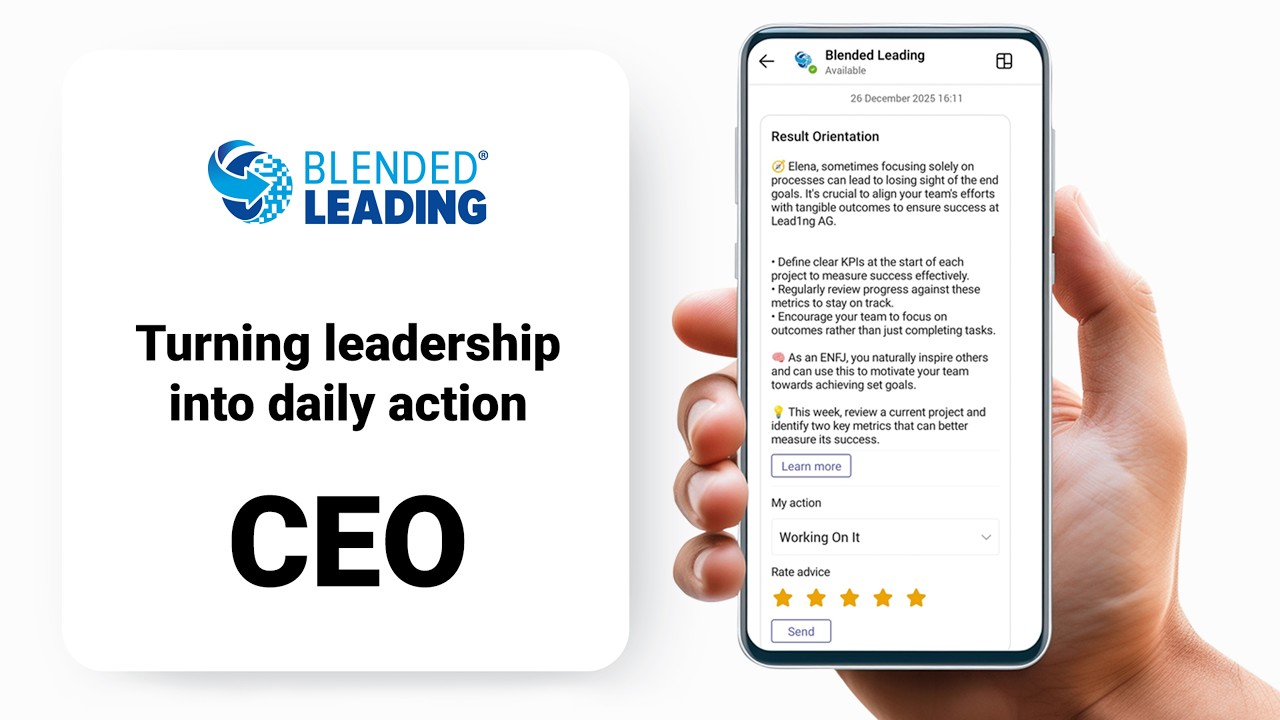
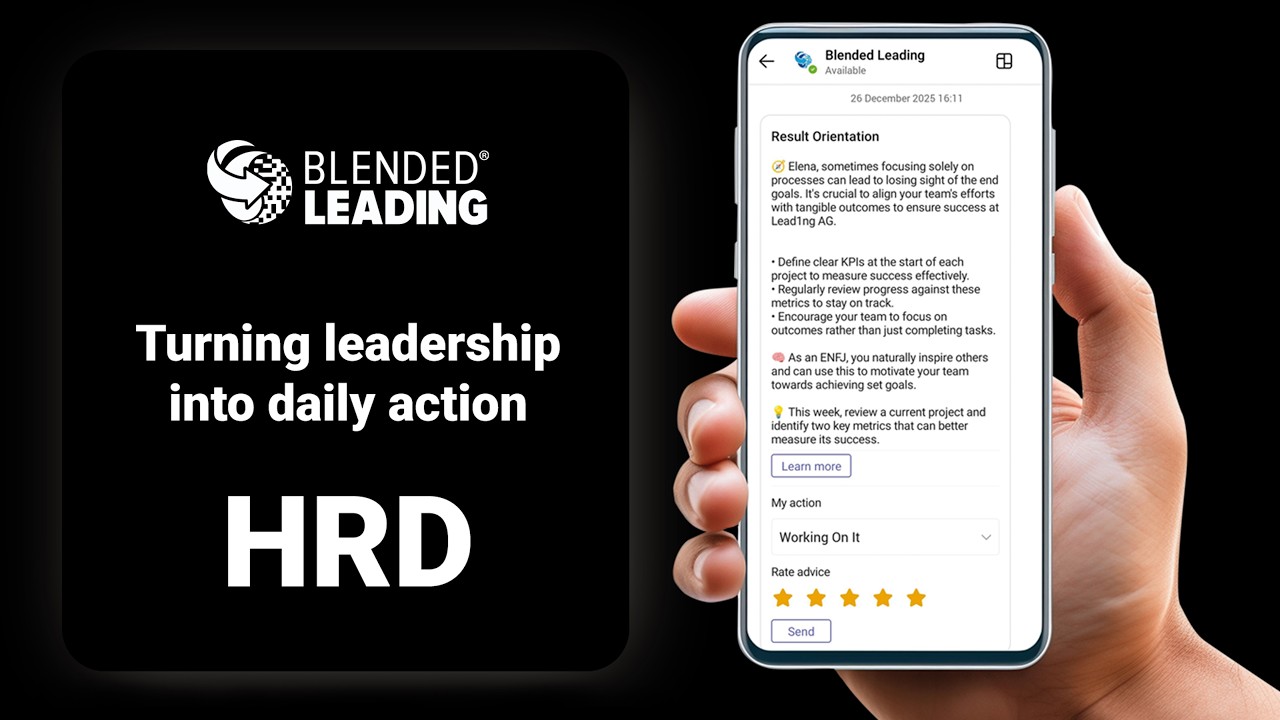
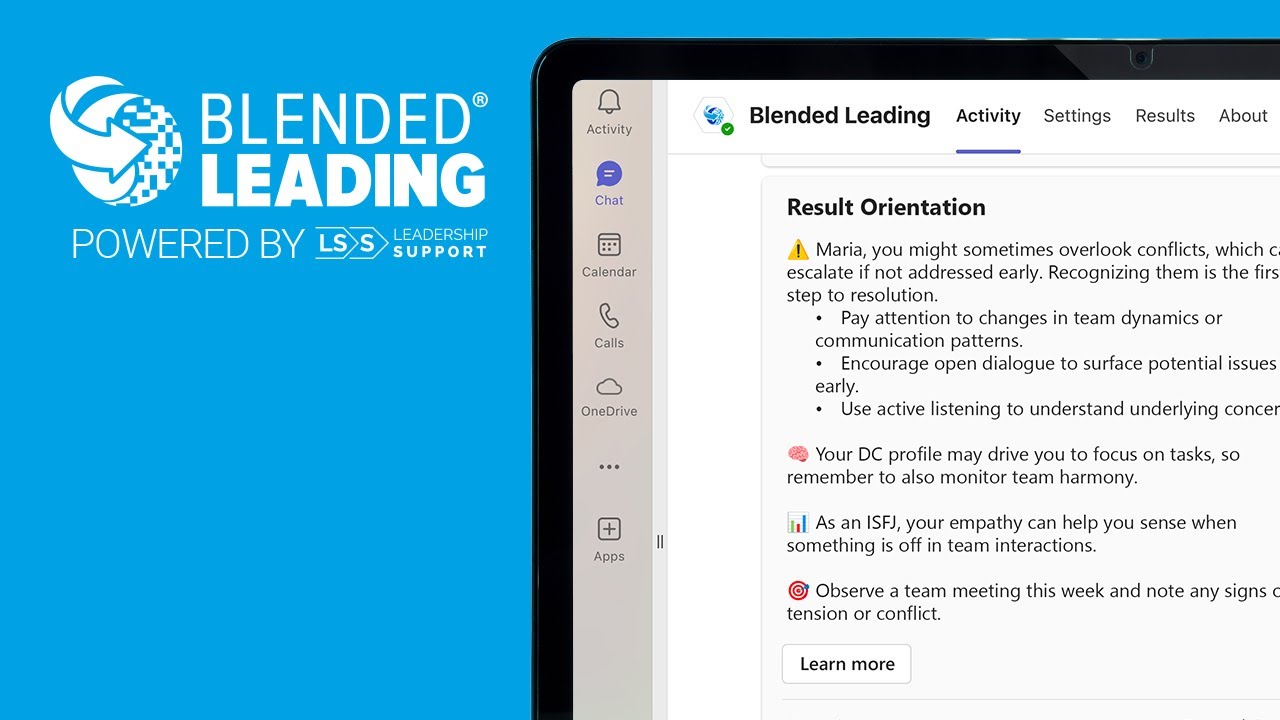
Добре дошли в Blended Leading за ИТ!
Това ръководство предоставя технически преглед на Blended Leading, обяснява ролята на ИТ по време на внедряването и работата и ви помага да разберете принципите на сигурност, достъп и управление, залегнали в решението.
Какво е Blended Leading (от ИТ перспектива)?
Blended Leading е базирана на ИИ платформа за подпомагане на лидерството, която предоставя персонализирани лидерски напомняния директно в Microsoft Teams.
Решението е проектирано да се интегрира с вашата съществуваща среда на Microsoft 365 и да работи като сигурна, специфична за организацията услуга.
От ИТ перспектива Blended Leading се състои от:
- Приложение за Microsoft Teams
- Бот за Microsoft Teams
- Удостоверяване чрез Microsoft Entra ID (Azure AD)
- Интеграция с Microsoft Graph
- Облачна платформа Blended Leading
Платформата се администрира основно от отдел „Човешки ресурси“ и бизнес заинтересовани страни, докато ИТ отделът отговаря за внедряването, достъпа и управлението.
Какъв проблем решава?
Организациите инвестират сериозно в развитие на лидерството чрез:
- Програми за обучение
- Коучинг
- Оценки
- Платформи за обучение
Въпреки това, последователното прилагане на наученото в ежедневната работа остава предизвикателство.
Blended Leading разширява развитието на лидерството в работния процес, като предоставя персонализирани насоки директно в Microsoft Teams.
За ИТ това означава поддържане на критична за бизнеса платформа за развитие, която работи в рамките на съществуващата инфраструктура на Microsoft, без да въвежда допълнителна сложност за крайния потребител.
Вашата роля като ИТ администратор
Като ИТ администратор вашата роля е да активирате сигурното внедряване и работа на платформата.
Вашите отговорности обикновено включват:
- Преглед на изискванията за сигурност и съответствие
- Създаване и конфигуриране на регистрацията на бота
- Управление на разрешенията в Microsoft Entra ID
- Инсталиране и публикуване на приложението Teams
- Управление на политиките за достъп и пилотните групи
- Поддръжка при отстраняване на неизправности, когато е необходимо
В повечето организации участието на ИТ е най-голямо по време на внедряването и значително по-малко по време на текущата работа.
Какво не е необходимо да правите
Blended Leading е проектиран да минимизира текущото ИТ администриране.
Не е необходимо да:
- Конфигурирате лидерски модели
- Качвате лидерски данни
- Управлявате напомнянията
- Интерпретирате отчети или анализи
- Поддържате ежедневните взаимодействия с потребителите
- Мониторирате съдържанието на платформата
Тези дейности се поемат от администраторите на „Човешки ресурси“ и собствениците на бизнеса.
Как работи Blended Leading (накратко)
Blended Leading следва ясен процес:
- ИТ отделът внедрява и активира платформата
- ЧР конфигурират организационните настройки и лидерските данни
- Лидерите осъществяват достъп до Blended Leading чрез Microsoft Teams
- Платформата генерира персонализирани напомняния
- Обратната връзка подобрява потребителското изживяване с течение на времето
- ЧР получават обобщена организационна информация
Това разделение гарантира, че ИТ отделът остава фокусиран върху инфраструктурата, достъпа и управлението.
Сигурност чрез дизайн
Blended Leading е изграден около принципа на минимално необходимия достъп.
Платформата:
- Не чете чатове в Teams
- Няма достъп до съдържанието на имейли
- Няма достъп до съдържанието на календара
- Не мониторира поведението на потребителите
- Не записва срещи
- Няма достъп до файлове в SharePoint или OneDrive
Обработват се само изрично разрешени данни.
Това опростява прегледите на сигурността и намалява опасенията относно поверителността по време на внедряването.
Удостоверяване и идентичност
Blended Leading използва Microsoft Entra ID за удостоверяване.
Това осигурява:
- Сигурно влизане в организацията
- Контрол на достъпа, специфичен за тенанта
- Единно влизане (SSO)
- Централизирано управление на идентичността
Решението се внедрява като специална конфигурация, специфична за тенанта, осигуряваща организационна изолация.
Какво печели ИТ отделът
Blended Leading е проектиран да:
- Се вписва естествено в средите на Microsoft 365
- Минимизира разходите за поддръжка
- Намалява сложността на внедряването
- Поддържа изискванията за корпоративна сигурност
- Позволява бизнес собственост без непрекъснато участие на ИТ
След внедряването текущото администриране обикновено се ограничава до управление на жизнения цикъл на приложението и стандартни процеси за управление на Microsoft 365.
Бележка относно поверителността и съответствието
Blended Leading е проектиран със строги принципи за поверителност:
- Без наблюдение на служителите
- Без скрито събиране на данни
- Само изрично използване на данни
- Обработка на данни в съответствие с GDPR
- Сигурна обработка и съхранение
- Контролиран от организацията достъп
Платформата е предназначена да подпомага развитието на лидерството, а не да мониторира служителите.
Вашите следващи стъпки
Следните статии обясняват подробно процеса на техническо внедряване:
- Разбиране на техническата архитектура
- Удостоверяване и разрешения
- Първоначално внедряване
- Инсталиране на приложението Teams
- Управление на достъпа и наличността на потребителите
- Сигурност и съответствие
- Отстраняване на неизправности
- ЧЗВ за ИТ администратори
Blended Leading е проектиран да бъде лесен за внедряване, сигурен за работа и лесен за поддръжка.
Разбиране на техническата архитектура
Преди да внедрите Blended Leading, е полезно да разберете как различните компоненти работят заедно.
Тази статия предоставя общ преглед на архитектурата, модела на удостоверяване и потока на данни зад платформата.
Не е необходимо да сте разработчик, за да разберете този раздел. Неговата цел е да подпомогне техническите прегледи, оценките на сигурността и планирането на внедряването.
Преглед на архитектурата
Blended Leading се състои от пет основни компонента:
- Microsoft Teams
- Microsoft Entra ID (Azure AD)
- Microsoft Graph
- Бот на Blended Leading
- Платформа Blended Leading
Заедно тези компоненти осигуряват сигурно и безпроблемно потребителско изживяване в Microsoft Teams.
Компонент 1: Microsoft Teams
Microsoft Teams е основният потребителски интерфейс.
Лидерите взаимодействат с Blended Leading директно в Teams, за да:
- Получават напомняния
- Преглеждат прозрения и резултати
- Управляват лични настройки
- Оценяват напомнянията и предоставят обратна връзка
Не се изисква допълнително влизане в платформата.
Компонент 2: Microsoft Entra ID
Microsoft Entra ID осигурява управление на идентичността и удостоверяване.
Той отговаря за:
- Удостоверяване на потребителите
- Единно влизане (SSO)
- Организационен контрол на достъпа
- Идентификация на тенанта
Когато потребител отвори Blended Leading, удостоверяването се извършва чрез Microsoft Entra ID, като се използва съществуващата инфраструктура за идентичност на организацията.
Компонент 3: Microsoft Graph
Blended Leading използва Microsoft Graph с ограничен обхват на разрешенията.
Платформата използва Microsoft Graph за:
- Проверка на потребителската идентичност
- Извличане на основна информация за профила
- Потвърждаване на членството в тенанта
Изискваното разрешение е:
User.Read
Това разрешение позволява достъп до основна информация за профила, необходима за удостоверяване и осигуряване на потребители.
Blended Leading не изисква достъп до:
- Поща
- Календари
- Разговори в Teams
- Файлове
- Съдържание в SharePoint
- Записи на срещи
Това следва принципа на най-малките привилегии.
Компонент 4: Бот на Blended Leading
Ботът на Blended Leading е комуникационният слой между Microsoft Teams и платформата Blended Leading.
Ботът отговаря за:
- Доставяне на напомняния
- Получаване на потребителски взаимодействия
- Управление на комуникацията, базирана на Teams
Ботът работи във вашия тенант на Microsoft 365 чрез специална регистрация на бот.
Тази регистрация се конфигурира по време на внедряването.
Компонент 5: Платформа Blended Leading
Платформата Blended Leading осигурява:
- Управление на потребителите
- Управление на лидерски модели
- Обработка на данни
- Генериране на напомняния
- Отчитане и анализи
- Интерфейси за администриране
Тук администраторите на ЧР конфигурират организационната настройка и преглеждат обобщените прозрения.
Общ поток на данни
Опростеният поток изглежда така:
Стъпка 1
Потребителят отваря Blended Leading в Microsoft Teams.
Стъпка 2
Microsoft Entra ID удостоверява потребителя.
Стъпка 3
Microsoft Graph потвърждава потребителската идентичност и информацията за тенанта.
Стъпка 4
Платформата Blended Leading извлича конфигурацията на потребителя и наличните данни.
Стъпка 5
Генерират се подходящи напомняния и прозрения.
Стъпка 6
Ботът на Blended Leading доставя съдържанието в Microsoft Teams.
Стъпка 7
Обратната връзка от потребителите се връща в платформата за непрекъснато подобряване и обобщено отчитане.
Модел на внедряване с един тенант
Blended Leading използва специална конфигурация, специфична за тенанта.
Това означава:
- Всеки клиент има собствена регистрация на бот
- Удостоверяването е ограничено до тенанта на организацията
- Достъпът се контролира от клиента
- Достъпът между тенанти не е разрешен
Този модел подобрява:
- Сигурността
- Управлението
- Административния контрол
Защо е необходима регистрация на бот
Регистрацията на бота позволява сигурна комуникация между:
- Microsoft Teams
- Microsoft Entra ID
- Платформата Blended Leading
Без регистриран бот:
- Teams не може да доставя напомняния
- Удостоверяването не може да бъде завършено
- Потребителите не могат да взаимодействат с приложението
Поради тази причина регистрацията на бота е първата стъпка от внедряването.
Принципи на сигурност
Архитектурата следва няколко основни принципа на сигурност:
Най-малко привилегии
Изискват се само минимално необходимите разрешения.
Изолация на тенанта
Средата на всеки клиент е изолирана от другите клиенти.
Изричен достъп до данни
Обработват се само одобрени и конфигурирани източници на данни.
Сигурно удостоверяване
Удостоверяването се управлява чрез Microsoft Entra ID.
Без скрито наблюдение
Платформата не мониторира комуникациите или дейността на потребителите.
Типичен поток на внедряване
Стандартното внедряване следва тези стъпки:
- Преглед на архитектурата и изискванията за сигурност
- Регистрация на бота
- Конфигуриране на разрешенията в Microsoft Entra ID
- Предоставяне на информация за внедряване на Blended Leading
- Получаване на пакета на приложението Teams
- Качване и публикуване на приложението Teams
- Присвояване на потребители или пилотни групи
- Стартиране на решението
Следващите статии обясняват всяка стъпка подробно.
В обобщение
Архитектурата на Blended Leading е изградена около:
- Microsoft Teams
- Microsoft Entra ID
- Microsoft Graph
- Специализиран бот
- Платформата Blended Leading
Заедно тези компоненти осигуряват сигурно, мащабируемо и специфично за тенанта решение за развитие на лидерството с минимално текущо ИТ администриране.
Удостоверяване и разрешения
Удостоверяването и разрешенията са в основата на всяко внедряване на Blended Leading.
Тази статия обяснява как се удостоверяват потребителите, кои разрешения са необходими, защо са нужни и как Blended Leading следва принципа на най-малките привилегии.
Разбирането на тези концепции ще ви помогне да завършите прегледите на сигурността, одобренията на тенанта и планирането на внедряването по-ефективно.
Защо удостоверяването е важно
Blended Leading е проектиран да работи във вашата среда на Microsoft 365.
За да осигури безпроблемно потребителско изживяване, платформата трябва да:
- Проверява потребителската идентичност
- Потвърждава членството в организацията
- Активира сигурен достъп до приложението
- Гарантира, че потребителите имат достъп само до информация, която са упълномощени да виждат
Вместо да създава отделни потребителски акаунти, Blended Leading разчита на вашата съществуваща инфраструктура за идентичност на Microsoft.
Модел на удостоверяване
Blended Leading използва:
Microsoft Entra ID (Azure AD)
за:
- Удостоверяване
- Управление на идентичността
- Единно влизане (SSO)
- Проверка на тенанта
Когато потребител стартира Blended Leading от Microsoft Teams:
- Microsoft Entra ID удостоверява потребителя
- Тенантът на потребителя се проверява
- Достъпът се предоставя съгласно организационната конфигурация
Не се изисква отделно потребителско име или парола.
Единно влизане (SSO)
Blended Leading поддържа единно влизане чрез Microsoft Entra ID.
Това означава, че потребителите:
- Не се нуждаят от допълнителни идентификационни данни
- Не управляват отделни пароли
- Осъществяват достъп до платформата чрез съществуващия си акаунт в Microsoft 365
Предимствата включват:
- Подобрено потребителско изживяване
- Намален брой заявки за поддръжка
- По-силен контрол на сигурността
- Централизирано управление на идентичността
Удостоверяване на тенанта
По време на внедряването Blended Leading се конфигурира като:
Приложение с един тенант
Това означава:
- Удостоверяването е ограничено до вашата организация
- Само одобрени потребители могат да имат достъп до платформата
- Достъпът е изолиран от други клиенти
Този модел подобрява:
- Сигурността
- Управлението
- Административния контрол
Разрешения за Microsoft Graph
Blended Leading изисква минимален набор от разрешения за Microsoft Graph.
Изисквано разрешение
User.Read
Това разрешение позволява на приложението да:
- Идентифицира влезлия потребител
- Извлича основна информация за профила
- Проверява членството в организацията
Примерите включват:
- Име
- Имейл адрес
- Потребителски идентификатор
- Информация за тенанта
Защо е необходимо User.Read
Без User.Read платформата не може да:
- Удостоверява потребителите правилно
- Свързва потребителите с правилния тенант
- Персонализира потребителското изживяване
- Управлява осигуряването на потребители
Това разрешение е необходимо единствено за целите на идентичността.
До какво Blended Leading НЯМА достъп
Blended Leading не изисква достъп до:
Microsoft Teams
- Чатове
- Съобщения в канали
- Разговори
Microsoft Outlook
- Имейли
- Прикачени файлове
- Пощенски кутии
Microsoft Calendar
- Събития
- Съдържание на срещи
- Информация за планиране
Файлове на Microsoft
- OneDrive
- SharePoint
- Файлове в Teams
Срещи в Microsoft
- Записи
- Транскрипции
- Анализи на срещи
Тези разрешения не са необходими и не се изискват.
Съгласие на администратора
Преди потребителите да могат да осъществят достъп до Blended Leading, администраторът трябва да даде съгласие за необходимите разрешения за Microsoft Graph.
Процесът на съгласие:
- Преглежда заявените разрешения
- Предоставя организационно одобрение
- Активира удостоверяването на потребителите
Тъй като Blended Leading изисква само User.Read, обхватът на съгласието остава минимален.
Клиентска тайна и идентичност на приложението
Като част от внедряването се създава специална регистрация на бот.
Тази регистрация включва:
ИД на приложението (клиент)
Идентифицира приложението в рамките на Microsoft Entra ID.
ИД на директорията (тенанта)
Идентифицира тенанта на клиента.
Клиентска тайна
Осигурява сигурно удостоверяване на приложението.
Тези стойности са необходими за генериране на специфичния за клиента пакет за внедряване.
Най-добри практики за сигурност
Препоръчваме:
✔ Съхранявайте клиентските тайни сигурно
Третирайте тайните като привилегировани идентификационни данни.
✔ Следвайте политиките за ротация на тайни
Ротирайте тайните съгласно стандартите за сигурност на вашата организация.
✔ Ограничете административния достъп
Ограничете администрирането на бота и регистрацията на приложението до упълномощен персонал.
✔ Преглеждайте разрешенията периодично
Потвърждавайте, че остават присвоени само необходимите разрешения.
Често задавани въпроси за сигурността
Съхранява ли Blended Leading пароли на Microsoft?
Не.
Удостоверяването се извършва чрез Microsoft Entra ID.
Паролите никога не се съхраняват от Blended Leading.
Може ли Blended Leading да има достъп до нашите разговори в Teams?
Не.
Платформата не изисква и не получава разрешения за разговори в Teams.
Можем ли да ограничим достъпа до конкретни потребители?
Да.
Достъпът може да бъде ограничен чрез:
- Присвояване на приложението Teams
- Групи за сигурност
- Пилотни групи
- Организационни политики
Могат ли разрешенията да бъдат оттеглени по-късно?
Да.
Администраторите могат да премахнат:
- Разрешенията на приложението
- Съгласието на тенанта
- Наличността на приложението Teams
по всяко време.
В обобщение
Удостоверяването в Blended Leading се основава на:
- Microsoft Entra ID
- Единно влизане
- Контрол на достъпа, специфичен за тенанта
- Минимални разрешения за Microsoft Graph
Единственото изисквано разрешение за Microsoft Graph е:
User.Read
Този подход осигурява сигурно удостоверяване, като същевременно поддържа принципа на най-малките привилегии.
Първоначално внедряване и регистрация на бот
Тази статия ви превежда през първоначалното внедряване на Blended Leading във вашата среда на Microsoft 365.
Процесът на внедряване обикновено се извършва веднъж по време на имплементацията и се състои от:
- Създаване на регистрация на бот
- Конфигуриране на разрешенията в Microsoft Entra ID
- Предоставяне на информация за внедряване на Blended Leading
- Инсталиране на приложението Teams
- Присвояване на достъп на потребителите
Целият процес обикновено отнема по-малко от час за опитен администратор на Microsoft 365.
Преди да започнете
Преди да започнете, уверете се, че имате:
Необходими разрешения
- Достъп като администратор на Microsoft Teams
- Достъп като администратор на Microsoft Entra ID (Azure AD)
- Разрешения за регистрация на приложения
Необходима среда
- Тенант на Microsoft 365
- Активиран Microsoft Teams
- Наличен Microsoft Entra ID
Преглед на внедряването
Процесът на внедряване следва тази последователност:
Стъпка 1
Създаване на регистрация на бот на Blended Leading.
Стъпка 2
Конфигуриране на удостоверяване и разрешения.
Стъпка 3
Предоставяне на информация за внедряване на Blended Leading.
Стъпка 4
Получаване на специфичния за клиента пакет на приложението Teams.
Стъпка 5
Качване и публикуване на приложението Teams.
Стъпка 6
Присвояване на потребители или пилотни групи.
Стъпка 1: Създаване на регистрация на бот
Ботът на Blended Leading позволява комуникация между:
- Microsoft Teams
- Microsoft Entra ID
- Платформата Blended Leading
Без регистрацията на бота Teams не може да доставя напомняния или да поддържа взаимодействия с потребителите.
Отворете портала за разработчици на Teams
Отидете на:
https://dev.teams.microsoft.com/
Създайте нов бот
- Отворете Tools
- Изберете Bot Management
- Кликнете върху New Bot
Конфигурирайте следното:
Име на бота
BL Bot
Крайна точка за съобщения
https://api.blendedleading.com/bot
Кликнете върху Save.
Създайте клиентска тайна
След като ботът е създаден:
- Отворете Client Secrets
- Създайте нова тайна
- Съхранявайте тайната сигурно
⚠️ Тайната ще бъде необходима по-късно по време на внедряването.
Стъпка 2: Конфигуриране на Microsoft Entra ID
След създаване на бота:
- Отворете портала на Microsoft Azure
https://portal.azure.com/
- Отидете на:
App Registrations
- Отворете регистрацията на бота, създадена в предишната стъпка.
Конфигуриране на поддържани типове акаунти
Отидете на:
Authentication
Изберете:
Accounts in this organizational directory only
(Single Tenant)
Запазете конфигурацията.
Конфигуриране на API разрешения
Отидете на:
API Permissions
Изберете:
Add Permission
Изберете:
Microsoft Graph
След това:
Delegated Permissions
Добавете:
User.Read
Накрая:
Grant Admin Consent
за вашата организация.
Събиране на информация за внедряване
Отидете на:
Overview
Запишете следните стойности:
ИД на приложението (клиент)
ИД на директорията (тенанта)
Тези стойности ще бъдат необходими на екипа за внедряване на Blended Leading.
Стъпка 3: Предоставяне на информация за внедряване
Изпратете следната информация сигурно на екипа по имплементация на Blended Leading:
ИД на приложението (клиент)
ИД на директорията (тенанта)
Клиентска тайна
Тези стойности се използват за генериране на вашия специфичен за организацията пакет за внедряване.
Какво следва?
Екипът на Blended Leading ще:
- Конфигурира вашето специфично за тенанта внедряване
- Генерира вашия пакет на приложението Teams
- Предостави архива за инсталиране
Ще получите пакет за внедряване, готов за качване в Microsoft Teams.
Стъпка 4: Даване на съгласие на тенанта
Преди да инсталирате приложението, трябва да бъде дадено съгласие от администратор.
Изпълнете URL адреса за съгласие, предоставен от Blended Leading по време на внедряването.
Това дава необходимото разрешение за Microsoft Graph:
User.Read
Не се изискват допълнителни разрешения за Graph.
Стъпка 5: Инсталиране на приложението Teams
След получаване на пакета за внедряване:
Отворете:
https://admin.teams.microsoft.com
Отидете на:
Teams Admin Center → Manage Apps
Качване на приложението
- Изберете Actions
- Изберете Upload New App
- Качете пакета за внедряване, предоставен от Blended Leading
След качването:
- Отворете подробностите за приложението
- Проверете конфигурацията
- Прегледайте настройките за наличност
Стъпка 6: Присвояване на потребители
Можете да изберете кой да получи достъп.
Типичните подходи за внедряване включват:
Пилотно внедряване
Присвояване на:
- Избрани лидери
- Пилотни групи
- Конкретни отдели
Препоръчва се за първоначално пускане.
Внедряване по отдели
Присвояване на:
- Бизнес единици
- Функции
- Лидерски групи
Внедряване в цялата организация
Направете приложението достъпно за всички отговарящи на условията потребители.
Проверка на внедряването
Преди стартиране проверете:
Удостоверяване
- Потребителят може да влезе успешно
Наличност в Teams
- Приложението се появява в Teams
Свързаност на бота
- Напомнянията могат да бъдат доставени
Администриране на ЧР
- Администраторът на ЧР има достъп до портала за администриране
Препоръчителен подход за пускане
Препоръчваме:
Фаза 1
Пилотна група
Фаза 2
Избрани бизнес единици
Фаза 3
Внедряване в цялата организация
Този подход позволява валидиране преди мащабиране.
Често срещани проблеми при внедряване
Приложението не се появява в Teams
Проверете:
- Присвояването на приложението
- Политиките на Teams
- Членството в потребителски групи
Потребителят не може да влезе
Проверете:
- Съгласието на тенанта
- Статуса на потребителския акаунт
- Конфигурацията на Microsoft Entra ID
Ботът не отговаря
Проверете:
- Регистрацията на бота
- Валидността на клиентската тайна
- Конфигурацията на тенанта
В обобщение
Първоначалното внедряване се състои от:
- Регистрация на бот
- Конфигурация на Entra ID
- Одобрение на разрешение User.Read
- Инсталиране на приложението Teams
- Присвояване на потребители
След като внедряването приключи, текущото администриране обикновено е минимално и е фокусирано основно върху управлението на жизнения цикъл на приложението.
Управление на приложението Teams и потребителския достъп
След като Blended Leading бъде внедрен, текущото ИТ администриране обикновено се ограничава до управление на наличността на приложението, потребителския достъп и актуализациите на версиите.
Тази статия обяснява как да управлявате приложението Microsoft Teams след внедряването и как да поддържате контролирано пускане във вашата организация.
Защо това е важно
Управлението на наличността на приложението ви позволява да:
- Контролирате кой има достъп до Blended Leading
- Поддържате пилотни внедрявания
- Пускате решението постепенно
- Съобразявате внедряването с организационните политики
- Поддържате стандартите за управление и сигурност
Повечето организации започват с пилотна група, преди да разширят достъпа по-широко.
Достъп до центъра за администриране на Teams
Управлението на приложенията се извършва чрез центъра за администриране на Microsoft Teams.
Отидете на:
https://admin.teams.microsoft.com
Оттам отворете:
Teams Apps → Manage Apps
Този раздел съдържа всички приложения на Teams, налични във вашия тенант.
Намиране на приложението Blended Leading
След инсталирането намерете:
Blended Leading
в списъка с приложения.
От страницата с подробности за приложението можете да:
- Прегледате конфигурацията
- Управлявате наличността
- Контролирате потребителския достъп
- Проверите статуса на приложението
Осигуряване на наличност на приложението
Blended Leading поддържа гъвкави модели на внедряване.
Можете да направите приложението достъпно за:
Конкретни потребители
Полезно за:
- Тестване
- Ранни потребители
- Изпълнителни спонсори
Групи за сигурност
Полезно за:
- Пилотни програми
- Лидерски кохорти
- Внедряване по отдели
Препоръчва се за повечето внедрявания.
Цялата организация
Полезно, когато:
- Пилотните фази са завършени
- Одобренията за управление са финализирани
- Организацията е готова за пълно приемане
Препоръчителен подход за пускане
Повечето успешни внедрявания следват поетапен подход.
Фаза 1 – Пилотна група
Присвояване на достъп на:
- Проектен екип на ЧР
- Екип за развитие на лидерството
- Избрани лидери
Цели:
- Валидиране на внедряването
- Потвърждаване на потребителското изживяване
- Събиране на първоначална обратна връзка
Фаза 2 – Контролирано разширяване
Присвояване на достъп на:
- Конкретни бизнес единици
- Лидерски групи
- Целеви групи
Цели:
- Валидиране на мащабируемостта
- Потвърждаване на процесите на управление
- Измерване на приемането
Фаза 3 – Внедряване в цялата организация
Направете приложението достъпно за всички отговарящи на условията потребители.
Цели:
- Максимизиране на приемането
- Стандартизиране на достъпа
- Намаляване на административните усилия
Управление на потребителския достъп
Достъпът може да бъде коригиран по всяко време.
Можете да:
Добавяте потребители
Предоставяте достъп на:
- Нови лидери
- Нови отдели
- Нови локации
Премахвате потребители
Премахвате достъпа, когато:
- Служители напускат
- Пилотните програми приключат
- Достъпът вече не е необходим
Ограничавате достъпа
Достъпът може да бъде ограничен чрез:
- Групи за сигурност
- Политики на Teams
- Организационни контроли
Това позволява прецизно управление без промяна на самото приложение.
Управление на актуализациите
Blended Leading периодично пуска актуализации и подобрения.
Актуализациите могат да включват:
- Нова функционалност
- Подобрения на сигурността
- Подобрения на потребителското изживяване
- Оптимизации на платформата
Актуализиране на приложението
Когато бъде предоставен нов пакет:
- Отворете Teams Admin Center
- Отидете на Manage Apps
- Изберете Blended Leading
- Качете актуализирания пакет
Microsoft Teams ще приложи актуализираната версия съгласно стандартните процеси за управление на приложения в Teams.
Най-добри практики за управление на версиите
Препоръчваме:
✔ Тествайте преди широко пускане
Първо валидирайте актуализациите с малка група.
✔ Информирайте HR администраторите
Комуникирайте промени, които могат да засегнат:
- Отчитането
- Конфигурацията
- Потребителското изживяване
✔ Поддържайте документацията актуална
Уверете се, че вътрешната документация за поддръжка отразява внедрената версия.
Временно деактивиране на достъпа
Ако е необходимо, достъпът може да бъде временно ограничен чрез:
- Премахване на назначенията на потребители
- Ограничаване на групите за сигурност
- Актуализиране на политиките на приложението в Teams
Това може да бъде полезно по време на:
- Прегледи на сигурността
- Вътрешни одити
- Организационни промени
Премахване на приложението
Ако Blended Leading вече не е необходимо:
- Премахнете потребителския достъп
- Прекратете публикуването на приложението
- Премахнете пакета за Teams
- Откажете разрешенията на приложението, ако е необходимо
Премахването може да бъде извършено по всяко време от администратора на наемателя.
Подкрепа за HR по време на внедряването
Въпреки че HR отделът отговаря за оперативната употреба на Blended Leading, ИТ отделът може да бъде помолен да съдейства за:
Проблеми с потребителския достъп
Примери:
- Приложението не е видимо
- Проблеми при вписване
- Проблеми с назначенията
Актуализации на приложението
Примери:
- Внедряване на нов пакет
- Валидиране на версия
Прегледи на сигурността
Примери:
- Прегледи на разрешенията
- Оценки на съответствието
- Прегледи на управлението на наемателя
Често задавани въпроси
Можем ли да го внедрим само в един отдел?
Да.
Наличността на приложението може да бъде ограничена до конкретни потребители или групи.
Можем ли да проведем пилотен проект преди пълното внедряване?
Да.
Пилотните внедрявания са препоръчителни и често използвани.
Можем ли да премахнем достъпа, без да деинсталираме приложението?
Да.
Потребителският достъп може да се управлява независимо от пакета на приложението.
Можем ли да върнем актуализация към предишна версия?
Това зависи от вашия вътрешен процес за управление на приложения и наличните версии на пакети за внедряване.
Свържете се с екипа за поддръжка на Blended Leading, ако е необходимо съдействие за връщане към предишна версия.
В обобщение
Управлението на Blended Leading след внедряването включва основно:
- Управление на потребителския достъп
- Наличност на приложението в Teams
- Актуализации на версиите
- Поддръжка на управлението
По-голямата част от ежедневното администриране на платформата остава в HR отдела, което позволява на ИТ отдела да се съсредоточи върху сигурността, контрола на достъпа и управлението на жизнения цикъл.
Сигурност, съответствие и защита на данните
Сигурността, поверителността и съответствието са централни за всяко внедряване на Blended Leading.
Тази статия обяснява как е проектирана платформата за защита на организационните данни, кои принципи за сигурност се прилагат и какво трябва да знаят ИТ администраторите по време на прегледи на сигурността, одити и оценки на съответствието.
Сигурност чрез дизайн
Blended Leading е проектирана около прост принцип:
Достъп само до необходимото. Нищо повече.
Платформата следва архитектура с минимални привилегии, което означава, че изисква само минималните разрешения, необходими за удостоверяване на потребителите и работа в рамките на Microsoft Teams.
Това намалява:
- Рисковете за сигурността
- Сложността на съответствието
- Административната тежест
Основни принципи за сигурност
Blended Leading е изградена около пет основни принципа:
- Минимални привилегии
Изискват се само минималните необходими разрешения.
Платформата изисква:
- Удостоверяване чрез Microsoft Entra ID
- Разрешение Microsoft Graph User.Read
Не са необходими допълнителни разрешения за Microsoft Graph за нормална работа.
- Изолация на наемателя
Всеки клиент работи в рамките на собствен наемател на Microsoft 365.
Това гарантира:
- Организационно разделение
- Независимо удостоверяване
- Специализирана регистрация на бот
- Контролиран достъп
Няма видимост между различните клиенти.
- Изрично използване на данни
Blended Leading обработва само данни, които са изрично предоставени от:
- Организацията
- HR администраторите
- Индивидуалните потребители (където е приложимо)
Не се извършва скрито или пасивно събиране на данни.
- Сигурно удостоверяване
Удостоверяването се извършва чрез:
- Microsoft Entra ID
- Единна регистрация (SSO)
- Управление на идентичността, контролирано от организацията
Паролите никога не се съхраняват от Blended Leading.
- Поверителност на първо място
Платформата е проектирана да подкрепя развитието на лидерството, а не да наблюдава служителите.
Този принцип влияе върху:
- Разрешенията
- Отчитането
- Анализите
- Видимостта на данните
До какви данни има достъп Blended Leading
Blended Leading има достъп само до:
Информация за идентичността
Чрез Microsoft Graph User.Read:
- Потребителско име
- Имейл адрес
- Идентификатор на потребителя
- Идентификатор на наемателя
Конфигурирани лидерски данни
В зависимост от организационната настройка:
- Лидерски модели
- Корпоративни ценности
- Доклади за 360° обратна връзка
- Психометрични профили
- Данни за развитието, предоставени от HR
Обратна връзка от потребителите
Примерите включват:
- Оценки на напомнянията (nudges)
- Статуси на действията
- Потребителски предпочитания
Тази информация се използва за подобряване на уместността и генериране на обобщени анализи.
До какво Blended Leading няма достъп
Blended Leading не изисква и няма достъп до:
Съдържание в Microsoft Teams
- Чатове
- Лични съобщения
- Разговори в канали
- Активност в Teams
Съдържание в Microsoft Outlook
- Имейли
- Пощенски кутии
- Прикачени файлове
Данни от календара на Microsoft
- Ангажименти
- Графици на срещи
- Съдържание на срещи
Файлове и документи
- Файлове в OneDrive
- Файлове в SharePoint
- Файлово хранилище в Teams
Срещи
- Записи
- Транскрипции
- Анализи на срещи
Данни за наблюдение на служителите
Платформата не:
- Наблюдава поведението
- Проследява продуктивността
- Анализира комуникациите
- Наблюдава ежедневните дейности
Това умишлено е извън обхвата на решението.
Собственост върху данните
Организацията на клиента остава собственик на своите данни по всяко време.
Blended Leading действа като:
Обработващ лични данни
докато клиентът остава:
Администратор на лични данни
съгласно дефинициите на GDPR.
Това означава, че организацията поддържа контрол върху:
- Използването на данните
- Задържането на данните
- Потребителския достъп
- Политиките за управление
Съответствие с GDPR
Blended Leading е проектирана да поддържа съответствие с изискванията на GDPR на ЕС.
Основните принципи включват:
Законосъобразно обработване
Данните се обработват само за ясно дефинирани цели на развитието.
Минимизиране на данните
Събират се и се обработват само необходимите данни.
Прозрачност
Потребителите са информирани за:
- Какви данни се използват
- Защо се използват
- Как са защитени
Потребителски контрол
Където е приложимо, потребителите могат:
- Да дадат съгласие
- Да оттеглят съгласие
- Да премахнат качени данни
- Да спрат да използват платформата
Шифроване и защита
Чувствителната информация е защитена чрез стандартни контроли за сигурност.
Това включва:
Шифроване при пренос
Данните, обменяни между:
- Teams
- Microsoft Entra ID
- Услугите на Blended Leading
са защитени чрез шифровани връзки.
Шифроване при съхранение
Съхраняваните данни са защитени чрез подходящи механизми за шифроване.
Контрол на достъпа
Административният достъп е ограничен чрез:
- Разрешения, базирани на роли
- Контроли, специфични за наемателя
- Организационни политики за управление
Поверителност на отчитането и анализите
Един от най-честите въпроси по време на прегледите на сигурността се отнася до отчитането.
Blended Leading следва строг принцип на разделение.
Какво може да вижда HR отделът
HR администраторите имат достъп до:
- Обобщени показатели за употреба
- Обобщени оценки
- Обобщени статуси на действията
- Организационни тенденции
Какво не може да вижда HR отделът
HR администраторите нямат достъп до:
- Индивидуални напомняния (nudges)
- Индивидуални оценки
- Индивидуални статуси на действията
- Индивидуално поведение при употреба
Това защитава доверието и психологическата безопасност на участниците.
Контролен списък за преглед на сигурността
Преди да одобрят внедряването, ИТ екипите често преглеждат следното:
Удостоверяване
✔ Microsoft Entra ID
✔ Единна регистрация (SSO)
Разрешения
✔ Само Microsoft Graph User.Read
✔ Без достъп до поща
✔ Без достъп до календар
✔ Без достъп до съобщения в Teams
Управление
✔ Изолация на наемателя
✔ Достъп, контролиран от клиента
✔ Администриране, базирано на роли
Поверителност
✔ Без наблюдение
✔ Без следене
✔ Само обобщено отчитане
Съответствие
✔ Дизайн, съобразен с GDPR
✔ Изрично използване на данни
✔ Организационна собственост върху данните
Често задавани въпроси за сигурността
Чете ли Blended Leading съобщения в Teams?
Не.
Платформата не изисква разрешения за достъп до разговори в Teams.
Чете ли Blended Leading имейли?
Не.
Достъп до имейл не се изисква и не е необходим.
Наблюдава ли Blended Leading поведението на служителите?
Не.
Платформата е проектирана за развитие на лидерството, а не за наблюдение на служителите.
Могат ли данните на клиента да бъдат достъпни от други организации?
Не.
Всяка клиентска среда е изолирана и защитена чрез конфигурация, специфична за наемателя.
Може ли достъпът да бъде оттеглен по всяко време?
Да.
Администраторите могат:
- Да премахнат разрешенията на приложението
- Да оттеглят съгласието
- Да премахнат достъпа до приложението
- Да деинсталират приложението в Teams
по всяко време.
В обобщение
Blended Leading е проектирана около:
- Достъп с минимални привилегии
- Изолация на наемателя
- Сигурно удостоверяване
- Обработка, съобразена с GDPR
- Принципи за поверителност на първо място
Платформата позволява развитие на лидерството, като същевременно поддържа високи стандарти за сигурност, управление и съответствие.
Отстраняване на неизправности и поддръжка
Тази статия обхваща най-често срещаните проблеми, с които ИТ администраторите могат да се сблъскат по време на внедряването или работата с Blended Leading.
Повечето проблеми могат да бъдат разрешени чрез стандартни процедури за администриране на Microsoft 365 и изискват минимално отстраняване на неизправности.
Преди да започнете
Когато отстранявате неизправности, първо определете:
Проблем с внедряването ли е това?
Примери:
- Приложението не е видимо
- Неуспешно удостоверяване
- Грешки в разрешенията
Проблем с конфигурацията на HR ли е това?
Примери:
- Няма налични напомняния (nudges)
- Липсващи потребителски данни
- Липсващи доклади
В тези случаи HR администраторите трябва първо да прегледат своята конфигурация.
Проблем с платформата ли е това?
Примери:
- Прекъсване на услугата
- Неочаквано поведение на приложението
- Неуспешна синхронизация
Ако подозирате проблеми, свързани с платформата, свържете се с поддръжката на Blended Leading.
Проблеми с видимостта на приложението
Проблем
Потребител не може да намери Blended Leading в Microsoft Teams.
Възможни причини
На потребителя не е назначен достъп
Проверете:
- Назначаване на група за сигурност
- Политики за настройка на приложения
- Право на достъп на потребителя
Приложението не е публикувано
Проверете:
Административен център на Teams → Приложения на Teams → Управление на приложения
Потвърдете:
- Статус на приложението = Разрешено
- Приложението е достъпно за назначените потребители
Ограничения на политиките на Teams
Проверете:
- Политики за разрешения на приложения в Teams
- Политики за настройка на приложения в Teams
Уверете се, че приложението е разрешено.
Контролен списък за разрешаване
 Приложението е качено успешно
Приложението е разрешено
Потребителят е назначен правилно
Политиките на Teams позволяват достъп
Потребителят е рестартирал Teams
Проблеми при вписване
Проблем
Потребителят отваря приложението, но не може да се впише.
Възможни причини
Проблем с конфигурацията на Microsoft Entra ID
Проверете:
- Идентификатор на наемателя
- Регистрация на приложението
- Настройки за удостоверяване
Липсващо съгласие на наемателя
Проверете дали разрешението за Microsoft Graph User.Read е предоставено и е получено съгласие.
Проблем с потребителския акаунт
Проверете:
- Активен акаунт в Microsoft 365
- Правилно членство в наемателя
- Подходящо лицензиране
Контролен списък за разрешаване
Активен потребителски акаунт
Разрешението User.Read е одобрено
Дадено е съгласие на наемателя
Конфигурацията за един наемател е правилна
Потребителят е вписан в правилния акаунт в Microsoft
Приложението се отваря, но не се появява съдържание
Проблем
Приложението се отваря успешно, но потребителят вижда ограничено или никакво съдържание.
Възможни причини
Потребителят не е конфигуриран
Проверете:
- Потребителят съществува в Blended Leading
- Настройката от HR е завършена
Няма налични лидерски данни
Проверете с HR отдела:
- Качени доклади
- Конфигуриран лидерски профил
- Първоначалната настройка е завършена
Непълна пилотна конфигурация
Проверете:
- Потребителят принадлежи към пилотната група
- Разрешенията за достъп са правилни
Контролен списък за разрешаване
Потребителят съществува в платформата
Конфигурацията от HR е завършена
Необходимите данни са налични
Потребителят е назначен правилно
Напомнянията (nudges) не се доставят
Проблем
Потребителят има достъп до приложението, но не получава напомняния.
Възможни причини
Проблем с регистрацията на бота
Проверете:
- Регистрацията на бота съществува
- Клиентският ключ (Client Secret) е валиден
- Идентичността на приложението е активна
Проблем с доставката в Teams
Проверете:
- Приложението в Teams работи
- Потребителският достъп е наличен
Потребителски настройки
Проверете с HR отдела:
- Доставката на напомняния е активирана
- Предпочитанията за известяване са конфигурирани
Контролен списък за разрешаване
Регистрацията на бота е активна
Клиентският ключ е валиден
Потребителят е конфигуриран
Известията са активирани
Teams работи
Грешки при удостоверяване на бота
Проблем
Ботът не успява да се удостовери или да комуникира правилно.
Възможни причини
Изтекъл клиентски ключ (Client Secret)
Проверете:
- Дата на изтичане на ключа
- Валидност на ключа
Неправилна конфигурация на приложението
Проверете:
- Идентификатор на клиента (Client ID)
- Идентификатор на наемателя (Tenant ID)
- Стойности на ключа
Промени в удостоверяването
Проверете:
- Настройки на Entra ID
- Промени в регистрацията на приложението
Контролен списък за разрешаване
Ключът е активен
Конфигурацията е непроменена
Настройките на наемателя са правилни
Удостоверяването работи
Проблеми с актуализацията на приложението
Проблем
Потребителите продължават да виждат по-стара версия след актуализация.
Възможни причини
Кеширане в Teams
Може да се наложи потребителите да:
- Рестартират Teams
- Излязат и се впишат отново
Пакетът не е актуализиран
Проверете:
- Качен е правилният пакет
- Качването е завършило успешно
Закъснение при разпространението на внедряването
Microsoft Teams може да се нуждае от време за разпространение на актуализациите.
Контролен списък за разрешаване
Качен е нов пакет
Версията е потвърдена
Teams е рестартиран
Осигурено е време за разпространение
Проблеми с потребителския достъп
Проблем
Някои потребители имат достъп до приложението, докато други нямат.
Възможни причини
Разлики в назначаването на групи
Проверете:
- Групи за сигурност
- Членство в пилотна група
Политики на Teams
Проверете:
- Политики за разрешения
- Политики за настройка на приложения
Предоставяне на потребители
Проверете:
- Потребителят съществува в Blended Leading
- Потребителският акаунт е активен
Контролен списък за разрешаване
Потребителят е добавен
Политиките са правилни
Назначаването на групи е правилно
Достъпът е предоставен
Контролен списък за валидиране на внедряването
След внедряването проверете:
Удостоверяване
Потребителят може да се впише
Единната регистрация (SSO) работи
Приложение в Teams
Приложението е видимо
Приложението се стартира успешно
Функционалност на бота
Ботът е свързан
Съобщенията могат да бъдат доставяни
Администриране
Достъпът за HR администратор е наличен
Порталът за конфигурация е достъпен
Разрешения
User.Read е одобрено
Дадено е съгласие на наемателя
Кога да се свържете с поддръжката на Blended Leading
Свържете се с поддръжката, ако:
- Пакетът за внедряване не успява да се инсталира
- Грешките при удостоверяване продължават
- Комуникацията с бота прекъсва неочаквано
- Функционалността на платформата изглежда недостъпна
- Подозирате проблем от страна на платформата
Когато се свързвате с поддръжката, предоставете:
- Идентификатор на наемателя (Tenant ID)
- Идентификатор на приложението (Client ID)
- Описание на проблема
- Екранни снимки, ако са налични
- Вече предприети стъпки
Това помага за по-бързото разрешаване.
Често задавани въпроси за отстраняване на неизправности
Изтрива ли данни преинсталирането на приложението в Teams?
Не.
Премахването и преинсталирането на приложението в Teams не премахва организационните данни, съхранявани в Blended Leading.
Какво се случва, ако сменим (ротираме) клиентския ключ?
Може да бъде генериран нов ключ.
Актуализираната стойност трябва да бъде предоставена на екипа на Blended Leading, за да се поддържа удостоверяването.
Можем ли временно да деактивираме достъпа?
Да.
Достъпът може да се управлява чрез:
- Политики на Teams
- Групи за сигурност
- Разрешения на приложението
Можем ли да деинсталираме решението напълно?
Да.
Приложението, разрешенията и достъпът могат да бъдат премахнати по всяко време от администраторите на наемателя.
В обобщение
Повечето проблеми попадат в една от три категории:
- Достъп и разрешения
- Удостоверяване и конфигурация на бот
- Назначаване на потребители и политики за внедряване
По-голямата част могат да бъдат разрешени чрез стандартни процедури за администриране на Microsoft 365.
За проблеми, свързани с платформата, екипът за поддръжка на Blended Leading е на разположение за съдействие.
ЧЗВ – Перспектива на ИТ администратора
Тези ЧЗВ отговарят на най-често срещаните въпроси от ИТ администратори, екипи по сигурността, администратори на Microsoft 365 и технически рецензенти. Те се фокусират върху внедряването, сигурността, разрешенията, управлението и оперативната поддръжка.
Общи въпроси
Сигурност и разрешения
Удостоверяване и идентичност
Внедряване и операции
Данни и съответствие
Актуализации и поддръжка
Кратко резюме на прегледа на сигурността
В резюме
Blended Leading е проектиран да бъде:
- Лесен за внедряване
- Сигурен за експлоатация
- Лесен за управление
- С ниска поддръжка за ИТ екипите
Платформата се интегрира естествено в Microsoft 365, като същевременно следва строги принципи за поверителност, сигурност и достъп с минимални привилегии.